Normattiva is a text database that stores all the numbered legislative acts published in the Official Gazette from 1861 to today. The database was set up with the aim of presenting the acts:
with "multiple consolidation" meaning the reconstruction of the life cycle of a legislative act with the explicit changes it has undergone over time. When the textual part of the acts is associated with parts of a provision in PDF graphic format, the "multi-applicability", duly indicated, also applies to this format.
Normattiva is a text database that stores all the numbered legislative acts published, in the "Official Gazette" and/or in the "Official Collection of Regulatory Acts", since 1861 and updated with the explicit amendments made over time by numbered and unnumbered acts subsequently published.
Updating, the result of careful editorial activity, is normally guaranteed within three days from the date of publication of the updating act. The complexity of the subject matter and the variety of updates prompted the design of reference editorial rules, shared with all those involved in the project, which are necessary for the editorial activity but also and above all useful when consulting the act. The aforementioned rules refer both to the methods of analysing the updating act and to the updating criteria of the amended act.
Starting from August 2019, also taking into account the suggestions of service users, some rules were revised and, consequently, the procedures for updating the acts were partially modified.
The new editorial updating rules are applied to the acts currently published and will be progressively extended to all the acts present in the Database; the completion of the relative updating activity will be duly notified on the portal's home page.
This approach entails the temporary coexistence of the new updating rules with those adopted in the past and, for this reason, the documentation referred to both is reported:
The most significant revisions introduced are highlighted below:
Normattiva allows you to find acts in two ways:
The "Simple search" box is located in the top right of all pages of the Portal. This function uses an advanced search engine capable of processing natural language. The engine uses search algorithms that can enhance the search for keywords in the text.
The "Advanced search" form can be activated on all pages of the Portal by clicking on the button located under the "Simple search" box (or alongside, on the internal pages of the website) and allows you to set, individually or in combination, the following search parameters:
If more than one "word" is entered (both in the title and in the text) it is possible to tell the system which constraint to adopt:
| " all the following words " | in this case the system will present the texts in which all the typed words are present at the same time, regardless of the position; |
| " the following phrase " | in this case the system will present the texts in which all the typed words are present at the same time, in the order indicated; |
| " any of the following words " | in this case the system will present texts containing at least one of the typed words; |
The search for a "Word in the text" searches exclusively within the text of an article, or annexes (even in versions other than that in force) and thus not in the notes to the articles.
When setting up the search you can also indicate the number of an article; in this case the system shows the text of the article indicated when it displays the act.
The search produces a list of the acts that meet the search settings.
For each act this list reports:
From each act on the list, you can access the related text.
If "words" have been used in the search setting, to the right of the title you can view and select the "highlight text" option which allows you to view some portions of text in which the specified words are present.
The acts are initially presented in the list in the following order:
This default order can be changed by selecting the options offered at the top of the screen under "ORDER BY:".
To the right of the list there is a section that provides a summary with the number of acts obtained from the search, organised by macro "categories": issuing authority, denomination of act and year of issue.
In addition to reporting a summary of the search results, this section is also a tool for refining the search: for example, by selecting one of the years listed in the " year of issue " section, the system allows you to add an additional search filter, i.e. the selected year.
When displaying the act, the application initially offers:
The acts included in the Normattiva database originate from the texts published in the Official Journal, where explanatory notes are very often given for one or more articles. This setting has been maintained in Normattiva and for each article, where present, the relative notes are offered; the text of the notes, not searchable, is easily recognisable as it is written in "red" at the bottom of the text of the corresponding article.
The system initially offers the text of the act "applicable on the date of consultation".
However, it is possible to change this setting by selecting one of the following buttons located at the top of the screen:
| "show act in multiple consolidation" | this option allows you to view the document in the "multiple consolidation" version, with the articles amended highlighted; |
| " show original act " | this option allows you to view the document in the text "originally" published in the "Official Gazette" and/or in the "Official Collection of Laws and Decrees". |
| "show act applicable at..." | this option allows you to view the document in the version "applicable" on the date indicated by the user. |
The "activate legislative references" button can always be found alongside the text of the article displayed (at the top right), which allows you to activate a link to all the legislative acts referred to in the text.
To the right of this button, if you are viewing the act in the "multiple consolidation" or "applicable on a date" version and the text of the selected article is amended, the "updates to article" button is activated which allows you to list and select the acts that made changes:
To the right of the screen, there are additional keys, " functions " and " further information ", which allow you to select the following options (navigable only when available for the act viewed):
(*) The task of adding related acts, applied from August 2019 to the acts currently published, will be progressively extended to all the documents present in the Database (completion of this task will be notified on the portal's home page).
If an article has been amended, the part concerned can be easily identified as it is conventionally highlighted by a double parenthesis (()). In particular:
The title of the act accompanied by the related reference information is offered at the top of the screen:
A list of articles and any annexes that make up the act displayed is shown on the left of the screen; by selecting a number on the list, the text of the corresponding article or annex in its version applicable on the date of consultation is displayed.
If the article and/or the annex is particularly long, it is divided into several parts (part 1, part 2, etc...); therefore, the indication (part) that follows an article or an annex allows you to view the part of the text with the progressive number indicated.
The system initially offers the first article of the act or the first part into which it might have been divided.
As well as in the body of the act, the numbering in articles can also be found in any annexes thereto.
The various articles are very often grouped into sections and sub-sections (so-called "intermediate titling"); when the structure is displayed it does not show the full text of the titling of the group of articles but only a portion thereof, which can be expanded by selecting the  button.
If words have been searched for within the text, the articles or annexes in which they are present are highlighted in orange; furthermore, by selecting the symbol ) , you can view a summary report that shows the words you searched for and the articles and/or annexes containing the words (note that if there are page numbers for the list of articles, this refers to the articles displayed);
When searching for words in the text, the words in the notes attached to the articles are not searched. The system could also detect the presence of words in the updated version of an article but not in the original version (and vice versa): in this case, the article concerned is still reported.
When viewing the "multiple consolidation" version of the act, obtained by selecting the "show act in multiple consolidation" option, the system highlights the amended articles by preceding the number of the article or annex with the symbol ) : the symbol indicates that the article/annex to which it refers has been updated at least once.
Selecting the article/annex number allows you to view the text originally published, while selecting the symbol allows you to view the list of updates to the element in question (upd. 1, upd. 2, etc ...); selecting "update number" allows you to view the text of the article or annex applicable in the period indicated above it.
The following example summarises the above:
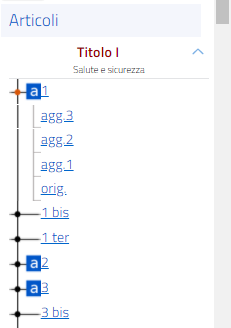
In the example, the words searched for are only contained in article 2 and in annex 1, while they are not contained in the other articles and in the two parts into which the second annex is divided; moreover, the third article appears to have undergone two updates: to view the original text of the article you need to select "3" while to view the updates you need to select "upd. 1" and “upd. 2" (the list of which was previously obtained by selecting the symbol) ).
 Presidenza del Consiglio dei Ministri